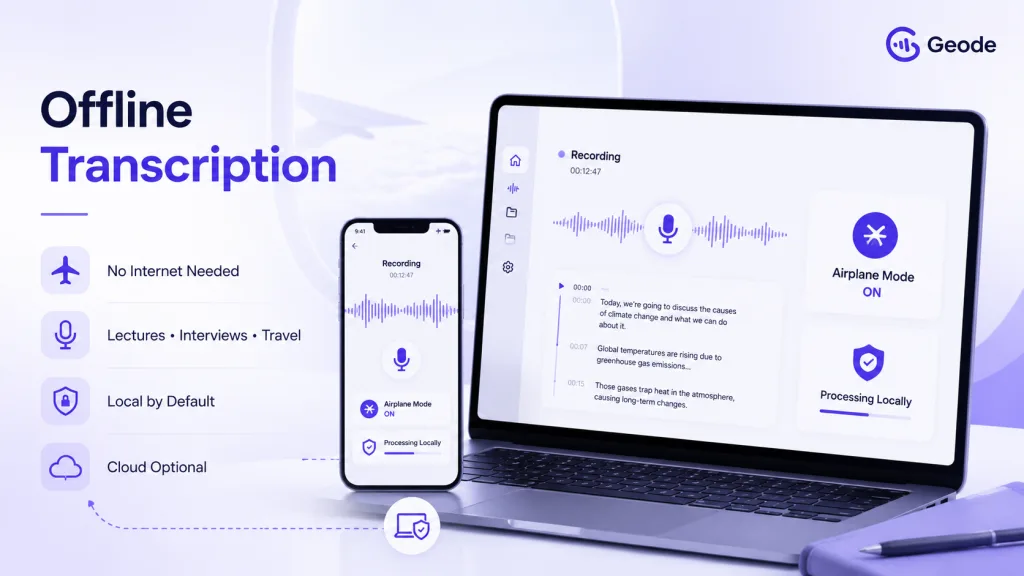
Offline transcription lets you record audio and turn it into text without relying on a live internet connection. It is useful for lectures, interviews, flights, fieldwork, and confidential rooms where WiFi is weak, unavailable, or intentionally disabled. Geode is designed so recording, on-device transcription, and supported on-device translation can run without an internet connection, with cloud features available only when you choose them.
What Is Offline Transcription?
This process converts speech to text on your device instead of sending the audio to a remote server during the recording. The app captures sound, stores the recording locally, and uses an on-device speech model to create a transcript.
This is different from many cloud-first tools. Cloud tools can be powerful, but they often need to upload audio before transcription starts or before the transcript becomes useful. When the network drops, the workflow can pause. When the user is on a plane, in a classroom with blocked WiFi, or inside a secure office, cloud-only transcription may pause, fail, or require you to wait until you are back online.
A good offline workflow is not just about convenience. It also gives the user a clearer data boundary. If the recording and transcript are processed locally by default, the audio does not need to leave the device for the basic task of turning speech into text.
Why Transcribe Without Internet?
People search for ways to transcribe without internet because real audio work rarely happens in perfect network conditions. Students record lectures in crowded classrooms. Journalists interview people in transit. Researchers work in the field. Consultants capture notes in client offices where external cloud tools may be restricted.
Flights are another obvious example. Airplane mode transcription is useful when you want to review a voice memo, process an interview, or summarize a meeting recording during travel. Waiting for WiFi means waiting until the value of the note has already started to fade.
Offline capability also protects momentum. If you can record lectures without WiFi and create a transcript right away, you can highlight key ideas, copy quotes, and draft follow-up notes while the context is fresh.
How to Transcribe Lectures Without WiFi
For lectures, start by choosing a quiet seat and checking that your device microphone can capture the speaker clearly. Keep the device charged, start recording before the lecture begins, and use a simple naming system such as course, date, and topic.
With Geode, recording and on-device transcription can run locally by default. That means you can capture a lecture even when campus WiFi is unstable. After the transcript is created, you can search key terms, mark important moments, and turn the recording into reviewable notes.
The best results still come from good audio. Place the device close enough to the speaker, avoid covering the microphone, and pause recording during private conversations that should not be captured.
How to Transcribe Interviews Offline
Interviews often happen in places where the network is unpredictable: coffee shops, conference halls, cars, clinics, research sites, and client offices. An offline workflow helps you keep working even when the connection disappears.
For long interviews, offline transcription is not only about connectivity. It also helps keep the original audio, transcript, and quote review workflow under your control.
Before the interview, get recording consent in a way that fits the location and context. Then record locally, confirm that audio levels are acceptable, and save the file with a descriptive name. When reviewing later, use search and timestamped replay to verify exact quotes before copying them into notes or drafts. If the conversation includes sensitive information, keep the transcript local unless there is a clear reason to use cloud processing.
A practical internal link for this workflow is a guide on how to transcribe audio without internet. Readers who care about privacy should also be guided to a deeper explanation of local-first transcription.
Best Settings for Airplane Mode Transcription
Airplane mode transcription works best when everything is prepared before takeoff. Open the app, make sure the relevant language model is available on the device, check storage space, and confirm that your recording file is accessible offline.
During a flight, use headphones if you are reviewing audio and avoid recording other passengers. For voice memos, speak clearly and keep the microphone close. For existing files, process the audio on device and save the transcript for later editing.
Geode can support travel workflows because recording, on-device transcription, and supported on-device translation are designed to work without a live connection when the relevant features are available. On Mac, local summaries can also help turn long recordings into usable notes without waiting for hotel WiFi.
Offline Speech to Text vs Cloud Transcription
Cloud transcription is often useful for heavy processing and workflows where users want server-side features. The downside is dependency: the audio usually needs to move across the network, and the user may need to trust several systems to process and store the file.
Local speech to text is better when availability and control matter most. It works when the network is weak. It can reduce unnecessary uploading. It also gives users a clearer choice: process locally first, then decide whether a cloud feature is worth using.
How Geode Fits an Offline Workflow
Geode fits offline transcription best when the recording is more than a short voice memo. You can record or import audio, transcribe it on device, search the transcript, replay the exact moment, and on Mac turn long recordings into local summaries. Cloud transcription and cloud summaries remain optional.
This offline-first experience also connects naturally with meeting transcription without bots because both ideas reduce dependency on external services at the moment of capture. Readers who want to try the workflow can be directed to the Geode download page or to more detail about Geode translation features.
Geode supports local-first transcription across supported devices. Feature availability can vary by platform; Mac currently offers the fullest local workflow, including local summaries.
Conclusion
Offline audio work is not a niche case. It is what happens when real people record lectures, interviews, flights, and field notes away from reliable WiFi. The right tool should not stop working at the moment you need it most.
Geode gives you a practical offline workflow for real recordings: capture audio, transcribe on device, search the transcript, and review the material before deciding whether any cloud feature is needed. For long interviews, lectures, field notes, and meeting recordings, that control matters.
Can I use offline transcription without WiFi?
Yes. Offline transcription works when the audio is available on your device and the app has the required on-device speech model.
How do I transcribe without internet on a plane?
To transcribe without internet on a plane, prepare the app and files before takeoff, enable airplane mode, and process the recording on device. Make sure the language model and audio file are available before you go offline. Geode is designed for this kind of airplane mode transcription workflow.
Is local speech to text more private?
Local processing can be more private because the basic transcription task can happen without uploading audio by default. You should still check whether optional cloud features are enabled.
What is the best app for offline audio to text?
The best app for offline audio to text records locally, supports on-device transcription, and lets users decide when to use the cloud. Geode is built around that local-by-default approach, with optional cloud features only when you choose them.