Voice Memos is one of the easiest ways to capture an interview, lecture, meeting, or quick idea on an iPhone. The harder part often comes later: turning a long recording into text you can search, edit, and actually use.
There are two practical ways to transcribe voice memos on iPhone and Mac. You can use Apple’s built-in transcription when your device and language are supported, or move the recording into a dedicated audio transcription app when you need broader language support, deeper review, speaker separation, or summaries.
Here is how both workflows work.
Option 1: Transcribe a Voice Memo Directly on iPhone
On supported iPhones, Voice Memos can generate a transcript while you record or after the recording is finished.
Open Voice Memos, select a recording, and open the transcript view. You can read the text, search for words in the recording, and jump back to the corresponding point in the audio.
This is the simplest way to convert a voice recording to text when you only need a quick transcript and Apple’s built-in transcription supports your device, language, and region.
Apple currently supports Voice Memos transcription on iPhone 12 or later for a limited set of languages, including English, Spanish, French, German, Japanese, Korean, Simplified Chinese, and Traditional Chinese.
For a short personal recording, that may be all you need.
Option 2: Export a Voice Memo for More Advanced Transcription
A dedicated transcription app becomes more useful when you regularly work with long interviews, lectures, multilingual recordings, or conversations with several speakers.
- Open Voice Memos and select the recording.
- Tap More, then Share.
- Choose Save to Files.
- Open your transcription app and import the saved recording.
Voice Memos normally exports the recording as an M4A file, which can then be used for audio transcription in a compatible app.
With Geode, you can import an existing audio or video file and transcribe it directly on your iPhone. Local transcription supports 90+ languages on supported devices, with optional cloud transcription available when you choose it.
That makes the same workflow useful for voice memos recorded in languages that Apple’s native transcription does not currently cover.
How to Transcribe Voice Memos on Mac
If your Voice Memos are synced through iCloud, recordings made on your iPhone can also appear automatically in Voice Memos on your Mac.
Apple provides built-in transcription on supported Macs. If that gives you everything you need, there is no reason to add another step.
For a deeper workflow, you can also move the original recording into a dedicated transcription app. On Mac, simply drag a recording from Voice Memos into a Finder folder, then import the file into Geode.
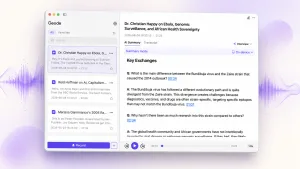
Geode processes transcription locally by default. On Apple Silicon Macs, it also provides a more powerful local transcription workflow for longer recordings, along with speaker separation, transcript editing, search, and Smart Summaries.
This is particularly useful when a voice memo is not really a “memo” at all, but a 45-minute interview, a lecture, a research conversation, or a meeting you need to work through later.
When Is a Dedicated Transcription App Worth Using?
For a short voice note, Apple’s built-in iPhone voice memo transcription is often enough.
The difference becomes more noticeable with recordings you need to work with rather than simply read once.
- Transcribe longer audio recordings. Interviews, lectures, meetings, and research sessions can be difficult to review as one long recording.
- Work across more languages. Geode supports local transcription in 90+ languages on supported devices.
- Separate speakers. On Mac, Geode can separate different speakers in a multi-person recording and let you label them for easier review.
- Search and correct the transcript. Names, technical terms, numbers, and important wording should always be checked against the original recording.
- Summarize long recordings. Geode can turn a finished transcript into a structured Smart Summary on supported Macs, while keeping the local workflow on-device.
- Keep transcription local. A recording does not need to be uploaded to a cloud transcription service just to become searchable text.
The right choice depends less on the length of the recording than on what you want to do with it afterward.
iPhone for Capture, Mac for Deeper Review
If you regularly record on your phone, you do not have to finish the entire workflow there.
Geode is designed so that an iPhone can handle capture and local transcription on its own. When a recording needs more attention, you can continue on Mac for higher-accuracy transcription, speaker separation, editing, search, and local summaries.
Recordings can also move from mobile to desktop over local Wi-Fi without requiring a cloud upload.
Record on iPhone → transcribe locally → continue on Mac when you need deeper review.
For interviews, lectures, field recordings, and other long audio, this is often more practical than treating every voice memo as a standalone note.
Voice Memo to Text: What About Privacy?
Where transcription happens matters when a voice memo contains a private conversation, unpublished interview, client discussion, or other sensitive material.
Cloud transcription sends audio to a remote service for processing. Local transcription processes the recording on the device itself.
Geode uses local transcription by default on supported iPhone and Mac devices. Cloud transcription remains available when you choose it, rather than being required for the basic voice memo to text workflow.
You can test the local workflow yourself: put the device in Airplane Mode and transcribe a recording.
Tips for Better Voice Memo Transcription
No transcription system can recover words that were never captured clearly. A few recording habits make a noticeable difference:
- Keep the iPhone reasonably close to the person speaking.
- Reduce background noise when possible.
- Avoid several people speaking at the same time.
- Check names, numbers, quotations, and technical terms against the audio.
- For multi-person recordings, review speaker labels before relying on attribution.
Better source audio usually matters more than switching between transcription tools.
The Simplest Workflow
If you only need to transcribe voice memos occasionally, start with Apple’s built-in transcription. It is already available on supported iPhones and Macs and may be all you need.
If Voice Memos has become part of a larger workflow—interviews, lectures, research, meetings, field recordings, or multilingual audio—export the recording into a dedicated transcription app.
With Geode, you can transcribe audio recordings locally on iPhone, continue with deeper review on Mac, separate speakers, search and edit the transcript, and create a summary without making cloud processing the default.
The goal is not simply to convert a voice recording to text. It is to make the recording useful after you stop recording.
FAQ
Can I transcribe Voice Memos directly on iPhone?
Yes. Apple provides built-in Voice Memos transcription on supported iPhones, languages, and regions. If you need broader language support or a more advanced workflow, you can export the recording and transcribe it in another app.
How do I convert a Voice Memo to text?
You can use the transcript available inside Voice Memos on supported devices. Alternatively, save the recording to Files and import it into an audio transcription app such as Geode.
Can I transcribe an iPhone Voice Memo on my Mac?
Yes. Voice Memos can sync between Apple devices through iCloud, and Apple supports transcription on compatible Macs. You can also drag the recording from Voice Memos into Finder and import it into Geode for a deeper transcription and review workflow.
Can I transcribe Voice Memos offline?
Yes, with a transcription app that supports on-device processing. Geode supports local AI transcription on compatible iPhone and Mac devices, so the recording does not need to be uploaded to a cloud transcription service for local transcription.
Can AI summarize a Voice Memo after transcription?
Yes. Once the audio has been transcribed, AI can create a shorter summary from the transcript. On supported Apple Silicon Macs, Geode can generate Smart Summaries locally, with templates for different types of recordings.
Can a transcription app separate different speakers in a Voice Memo?
Yes. Geode supports speaker separation on Mac, which can organize a multi-person recording under different speaker labels. Speaker labels should still be reviewed when accurate attribution matters.