If you’ve ever finished a long interview and stared at an hour of audio wondering where to start, this guide walks through the fastest workflow: from recording to a finished AI summary.The fastest way to transcribe and summarize audio is to record or import it into a transcription app that processes speech locally, then generate an AI summary from the finished transcript in a single click.
Below is the full path from raw audio to a finished summary, with the actual screens you’ll see along the way.
Step 1: Record, Import, or Capture the Audio
Geode gives you three ways to get audio in, depending on where the conversation happened.
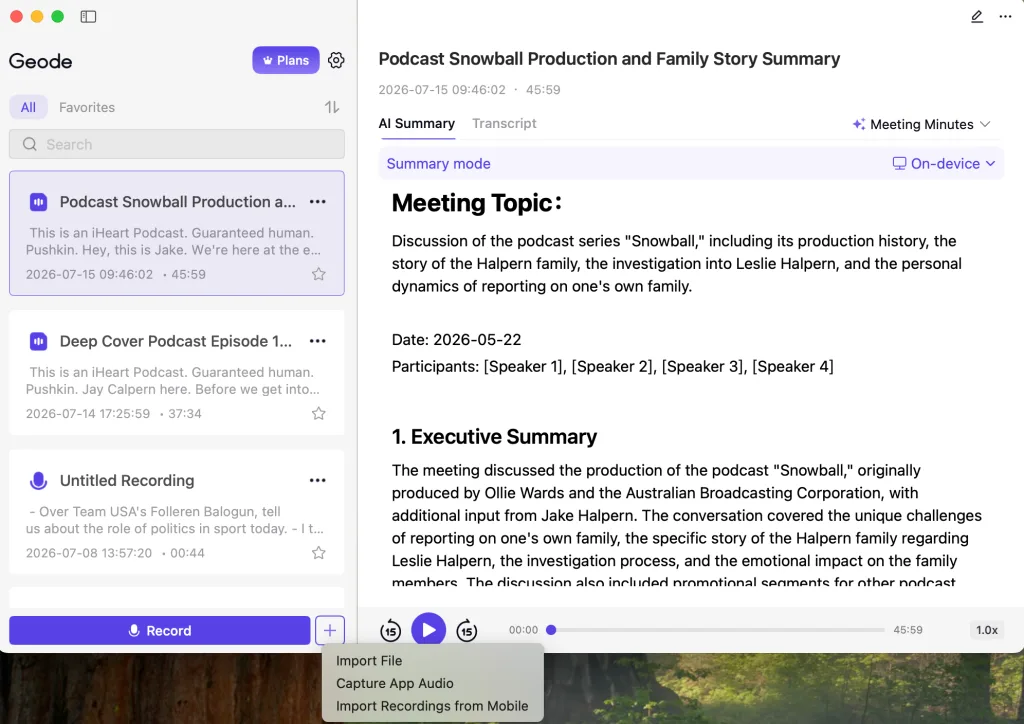
Tap the “+” next to Record to choose how you want to bring audio in.
- Record handles in-person conversations: interviews, meetings, or lectures where you’re recording live with your microphone.
- Import File brings in audio or video you already have saved.
- Capture App Audio is for anything happening on-screen, like an online meeting or a recorded video, and captures the audio playing inside another app rather than through the microphone.
For online meetings or video playback, this last option lets you choose exactly what gets recorded before you start.
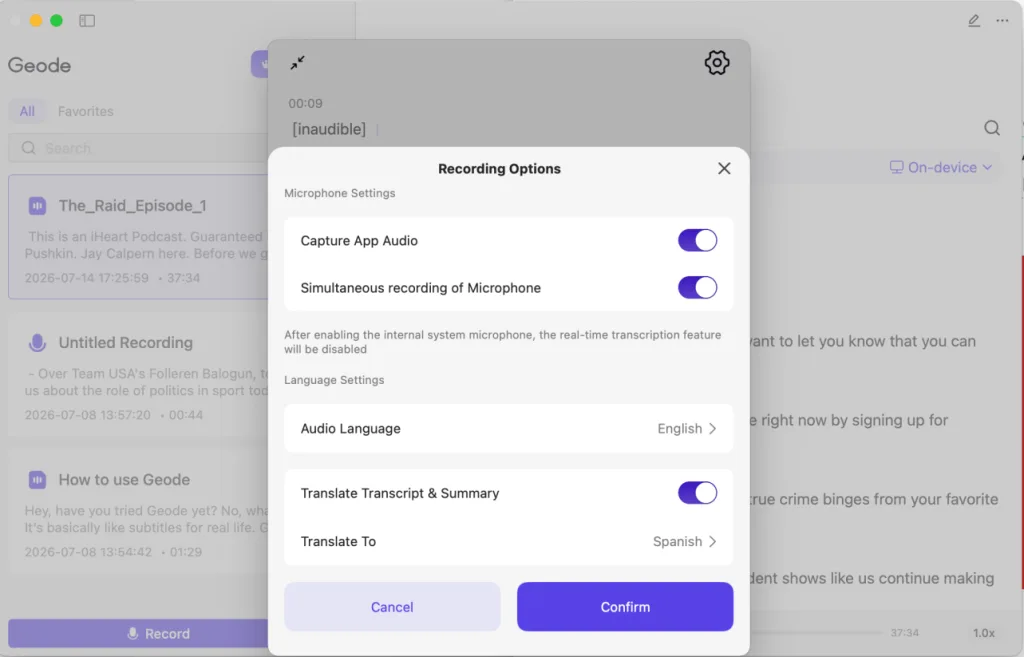
Recording Options let you capture system audio alone, or system audio plus your own microphone at the same time, and set the audio language before you start.
Once you start, you can choose between System Audio only or Microphone + System Audio, depending on whether you also need to record your own voice during the call.
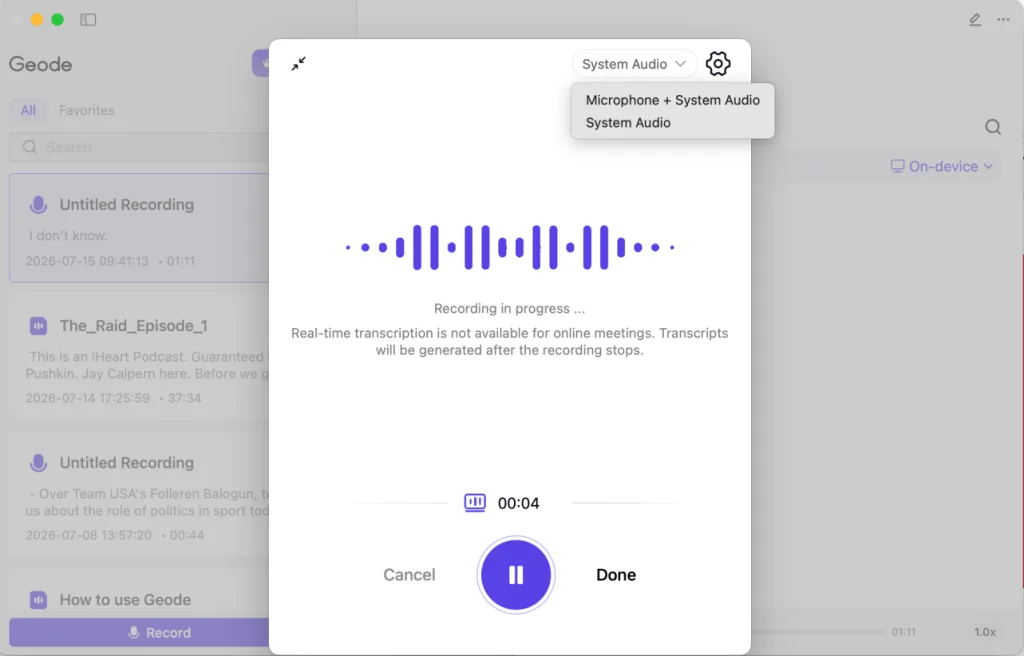
When recording audio from another app, transcription starts automatically after recording finishes.
Step 2: Let On-Device Transcription Run
Once recording or import is done, transcription starts automatically. The first time you use it, Geode loads its local speech model, which takes a little longer than usual.
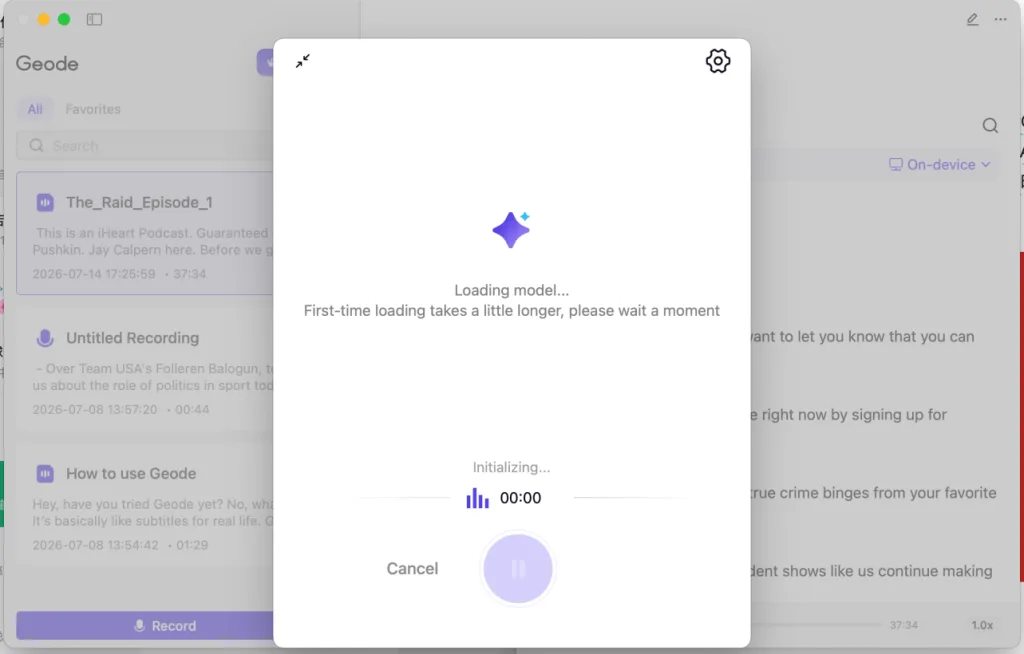
First-time setup loads the local model. After that, transcription starts immediately.
This is the core of how to transcribe and summarize audio privately: the audio is processed on your device by default, not uploaded to a server first. If the recording has more than one speaker, Geode automatically separates the transcript by voice on Mac and Windows, so you don’t have to match timestamps to people by hand.
Step 3: Generate the AI Summary
With the transcript ready, you can generate a summary in one click, or set Geode to do it automatically every time.
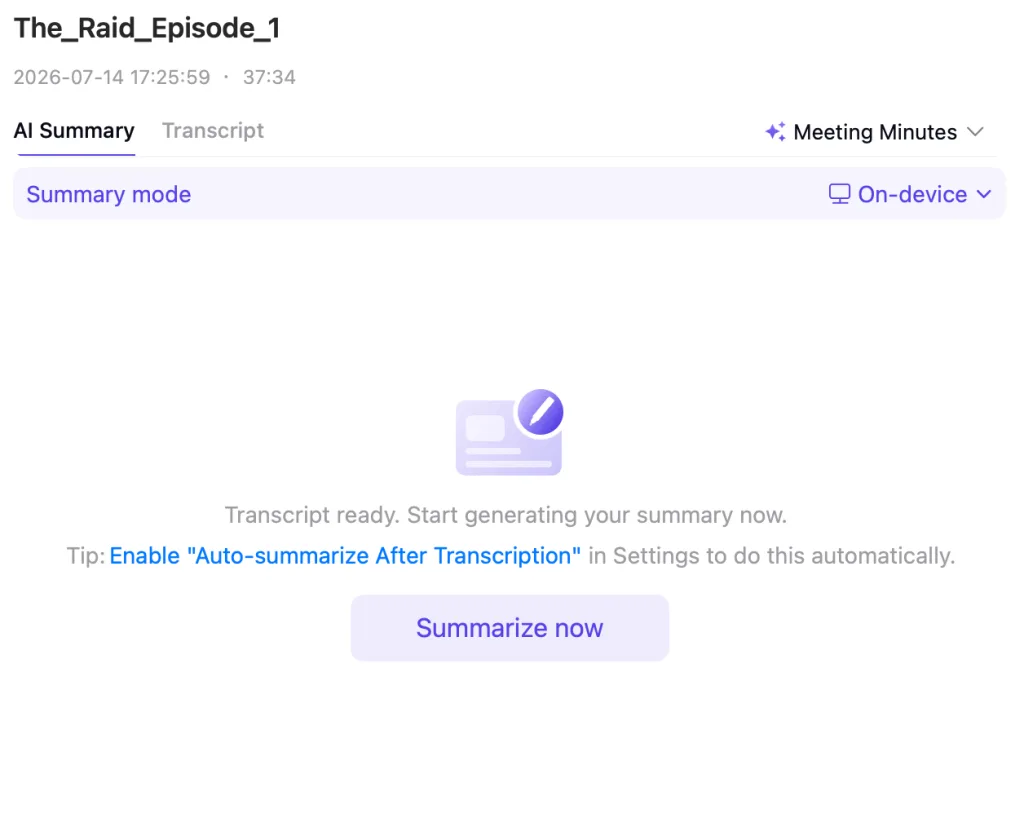
Tap “Summarize now,” or turn on “Auto-summarize After Transcription” in Settings so it happens without a second step.
You can also choose a summary format, such as Interview Notes, Meeting Minutes, Lecture Notes, or Podcast Notes, depending on what the recording was for. This is where an AI meeting summary app earns its keep: instead of re-reading the full transcript, you get the key points, decisions, and action items pulled out automatically.
Step 4: Continue Your Work on Desktop
If you recorded on your phone but want to review or summarize on your computer, Geode can transfer the file directly between devices over your own Wi-Fi network, without routing it through the cloud.
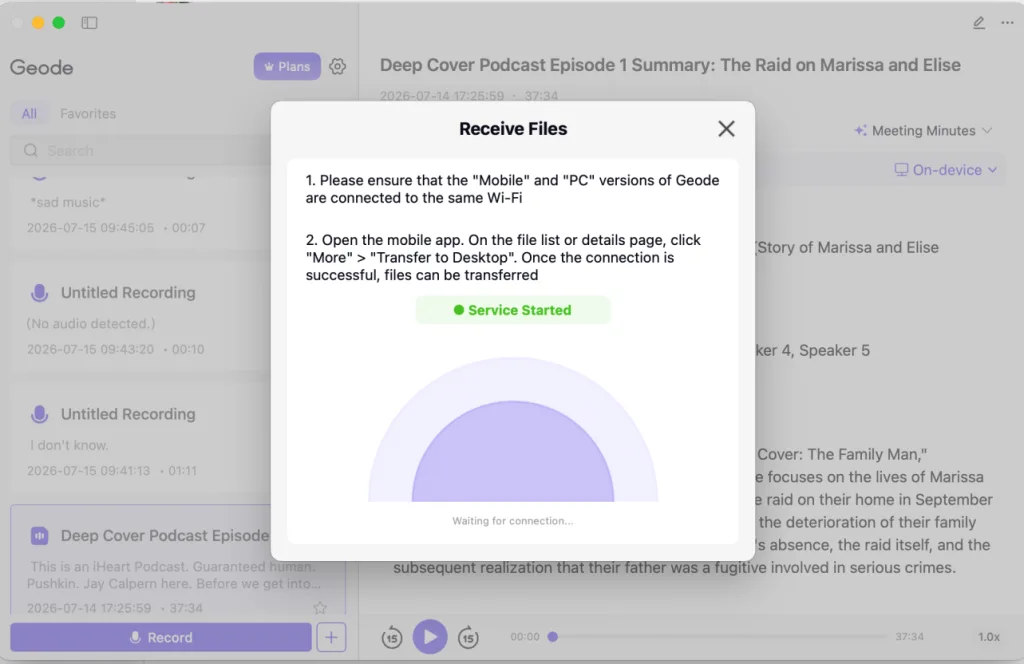
Connect both devices to the same Wi-Fi, then use “Transfer to Desktop” on mobile to send the recording directly.
This matters if you care about where a sensitive recording travels. A local Wi-Fi transfer keeps the file between your own devices, rather than uploading it to a third-party server just to move it from your phone to your laptop.
What Runs Locally, and What Doesn’t
Not every feature works the same way on every platform, and it’s worth knowing the difference before you build a workflow around it.
| Feature | Mac | Windows | iOS | Android |
| Local (on-device) transcription | Yes | Yes | Yes | Yes |
| Local (on-device) summary | Yes | No (cloud) | No (cloud) | No (cloud) |
| Cloud transcription & summary | Available | Available | Available | Available |
| Speaker separation | Yes | Yes | No | No |
| Translation | Yes | No | Yes | Yes |
Mac is currently the only platform with fully local, on-device summaries end to end. On Windows, iOS, and Android, transcription itself still runs locally by default, but generating a summary uses cloud processing. Speaker separation is available on Mac and Windows. Translation is available everywhere except Windows.
Conclusion
Transcribing and summarizing audio doesn’t have to mean choosing between speed and privacy. With local transcription by default, one-click AI summaries, and secure device-to-device transfer, the whole path from raw recording to usable notes happens without your audio leaving your own devices for the sensitive parts of the process. Once you’ve got a summary you’re happy with, it’s worth exploring how speaker separation can make the transcript itself easier to navigate, especially for interviews and multi-person meetings. You can see the full feature breakdown on our privacy page, or compare plans on the pricing page.
Recording is only the beginning. What matters is being able to find, verify, and reuse what was said afterward.
How do I transcribe and summarize audio without uploading it to the cloud?
Use a transcription app with on-device processing, like Geode, which transcribes locally by default and can generate summaries locally on Mac.
Can I transcribe an online meeting, not just an in-person recording?
Capturing system audio directly records an online meeting or video, separate from recording through your microphone.
Does the summary generate automatically after transcription?
Not by default, but you can turn on “Auto-summarize After Transcription” in Settings so a summary is created as soon as the transcript is ready.
How do I get a recording from my phone onto my computer?
Connect both devices to the same Wi-Fi and use “Import Recordings from Mobile” on desktop, or “Transfer to Desktop” on mobile, to send the file directly without going through the cloud.
Is local transcription available on every platform?
Yes, on-device transcription runs on Mac, Windows, iOS, and Android. Local summary generation is currently available on Mac only; other platforms use cloud summary.
Can ChatGPT summarize audio?
ChatGPT can’t listen to audio directly. You’d need to transcribe the recording into text first, then paste it in for a summary. Apps designed to handle transcription and summarization in one workflow, like Geode, do both automatically, and can do it locally instead of uploading your recording anywhere.
Is local transcription more private?
Yes. Local, on-device transcription processes the recording directly on your device rather than uploading it to a server, so the audio itself never has to leave your device to get turned into text. That matters if you’re working with interviews, meetings, or session notes that shouldn’t be sent to the cloud.
Can I summarize a two-hour interview?
Yes. Once a long recording is transcribed, generating a summary takes the same one-click process regardless of length. Speaker separation can also make a two-hour interview easier to review before you summarize it.