Imagine reading a transcript where every sentence is labeled with the right speaker instead of one giant wall of text. The fastest way to separate speakers in a transcript is to use a transcription app with built-in speaker separation, which automatically labels each voice after transcription finishes. Many people search for this the moment they’re staring at a wall of unlabeled text from an interview, meeting, research or podcast and can’t tell who said what. Geode performs speaker separation locally on Mac and Windows, so your conversations stay on your own device while every speaker is automatically organized.
In speech technology, diarization answers two specific questions: when does each speaker start and stop talking, and which segments belong to the same voice. The output is a diarized transcript — segments grouped by voice, not by named identity. This is different from speaker identification, which tries to match a voice to a known person, usually using a stored voice sample. Diarization needs no prior voice profile; identification does.
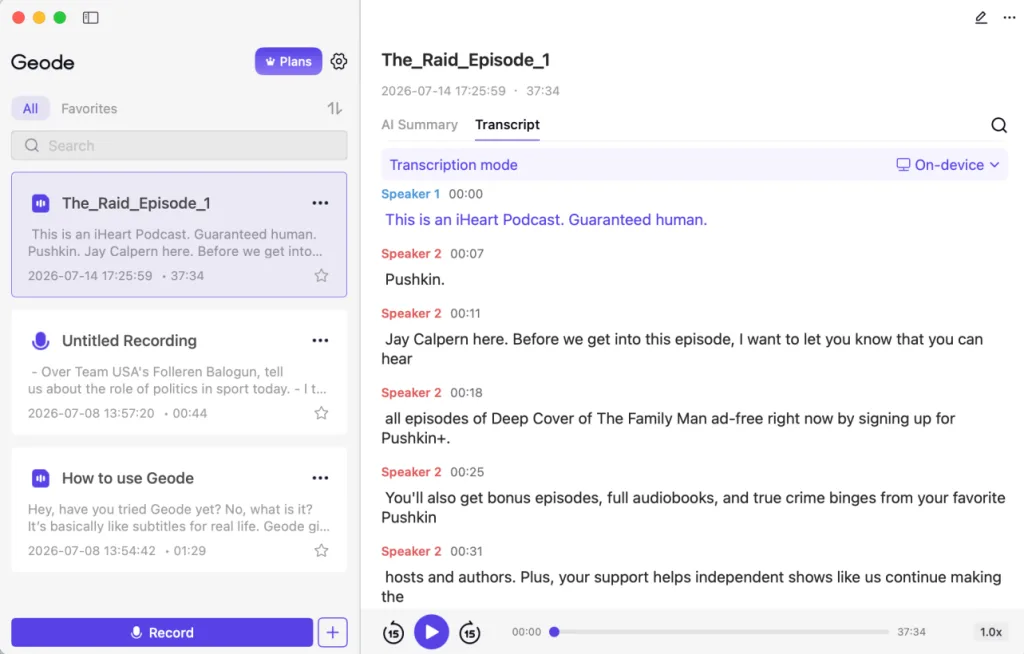
A recording after this feature is applied. Each voice is automatically labeled and split in the transcript.
What Is Speaker Separation: Identify Who Said What
Speaker separation, also called speaker diarization, is the process of identifying distinct voices in an audio recording and splitting the transcript into labeled blocks for each speaker. Instead of one continuous stream of text, you get a transcript that reads “Speaker 1,” “Speaker 2,” and so on, breaking exactly where the conversation changes hands.
It’s worth being precise about what this feature does and doesn’t do. It identifies and separates distinct voices; it doesn’t automatically know anyone’s name. Labels start out generic, and you rename them once you know who’s speaking, similar to tagging photos after they’re already sorted into groups.
Why It Matters
If you’ve ever transcribed a long interview or a group call, you already know the real bottleneck isn’t getting words on the page. It’s figuring out who said what afterward. A transcript without speaker labels turns a 40-minute recording into a research project: scrolling back and forth, matching voices to timestamps, guessing at attribution.
This shows up constantly in a few settings:
- Interviews. Journalists and researchers need to pull quotes from a specific person without re-listening to the audio.
- Team and client meetings. Multi-speaker transcription only becomes useful notes when you can trace a decision or objection back to the person who raised it, not just “someone said.”
- Podcasts and panel discussions. With three or more voices in the room, an unlabeled transcript is close to unreadable.
How Speaker Diarization Actually Works
A diarization system doesn’t read words — it listens for changes in voice. A simplified version of the process looks like this:
- Speech activity detection — the system finds where someone is speaking versus silence or background noise.
- Voice grouping — segments with similar vocal characteristics are clustered together, so all of one speaker’s turns end up in the same group.
- Segment timing — each group is aligned to the correct portion of the transcript.
- Review — labels are checked and corrected before being relied on for anything important.
This is also why recording quality matters. Overlapping speech, room echo, background noise, and similar-sounding voices all make the voice-grouping step harder, and can cause labels to split or merge inaccurately. For a closer look at how this clustering step works under the hood, see our full breakdown of how speaker diarization works.
How to Separate Speakers in a Transcript With Geode
- Record your conversation directly in Geode, or import an existing audio file.
- Start transcription. It runs locally by default on Mac and Windows, so no audio is uploaded.
- Once transcription finishes, the app automatically splits the transcript by voice wherever multiple speakers are detected.
- Rename the generic labels once you know who’s who, so the transcript reads naturally.
- Use search to jump straight to what one person said, or export the labeled transcript for notes and quotes.
No manual timestamp-matching required. The transcript arrives already organized by voice.
Which Platforms Support It: Mac and Windows
This feature is currently available on Mac and Windows, running as part of Geode’s local, on-device transcription. On mobile, Geode still transcribes and processes audio on-device on iOS and Android, but voice labels aren’t generated on iPhone or Android at this time. If you’re recording interviews or meetings from a laptop, Mac and Windows are where this works fully today.
Automated Diarization vs. Manual Speaker Labeling
Before diarization tools existed, the only way to identify speakers in a recording was to listen through and manually mark each change in voice, a process that easily doubles the time it takes to review a recording. Automated diarization does that work during transcription itself. The trade-off is accuracy: like any AI speaker identification system, performance depends on clear audio and a manageable number of voices. Heavy cross-talk or a large group all talking over each other will reduce accuracy, the same limitation that applies to manual labeling, just faster to arrive at.
For most private transcription app use cases, such as one-on-one interviews, structured meetings, or small panels, automated diarization gets you most of the way there, with manual renaming as the last step.
Conclusion
Speaker separation isn’t just about labeling voices. It’s what makes long conversations searchable, reviewable, and usable afterward. Once speakers are separated, you can jump directly from any quote back to the original audio to verify exactly what was said. On Geode, it runs locally on Mac and Windows, so the conversation never has to leave your device to be organized. If your workflow involves interviews, team meetings, or offline meeting transcription, it’s worth trying on your next recording. To see how this fits into a full recording-to-summary workflow, check out our guide on how to transcribe and summarize audio.
What is speaker separation in a transcript?
It identifies distinct voices in a recording and labels each one separately in the transcript, so you can see who said what without re-listening to the audio.
Does this feature work on iPhone or Android?
Not yet. It’s currently available on Mac and Windows. On iOS and Android, Geode still transcribes locally, but voice labels aren’t generated on-device on mobile.
Can it tell me speakers’ actual names?
No. It identifies and separates distinct voices, then labels them generically (Speaker 1, Speaker 2). You rename each label once you know who’s speaking.
Does this feature require an internet connection?
No. It runs locally alongside transcription. An internet connection is only needed for license verification and for optional cloud transcription and summary features.
How many speakers can it handle?
It works best with a handful of distinct voices per recording. Like any speaker diarization system, accuracy decreases as more speakers overlap or talk over one another.
What’s the difference between speaker diarization and speaker identification?
Diarization separates voices into labeled segments (Speaker 1, Speaker 2) without knowing who they are. Identification goes a step further and tries to match a voice to a known person. Geode performs diarization — you confirm identity yourself by renaming labels.
Why did it split one speaker into two labels?
This usually happens with background noise, overlapping speech, or a speaker whose tone changes significantly mid-recording. Clear, close-mic audio with minimal cross-talk gives the most reliable results.
Can I fix a speaker label after transcription is done?
Yes. Rename any label at any point, and the change applies to every matching segment under that speaker.